I recently got a new work laptop, so I spent the weekend reinstalling apps in between matches of The International (congrats on the three-peat, Team Spirit).
That got me thinking about my own laptop, which I’ve been using since 2021. As a daily macOS user for close to five years now, I’m still convinced the MacBook Air is the best laptop at its price point.
Sure, with all the fuckery going on with computer part prices worldwide, it’s not as good a deal as before — but it’s still solid. The entry-level model now starts at 16GB RAM and 512GB storage for RM5,399, which is still cheaper than what I paid for my M1 Air back then (RM5,999).
Either way, I thought it’d be nice to write an update to my original post about life on macOS.
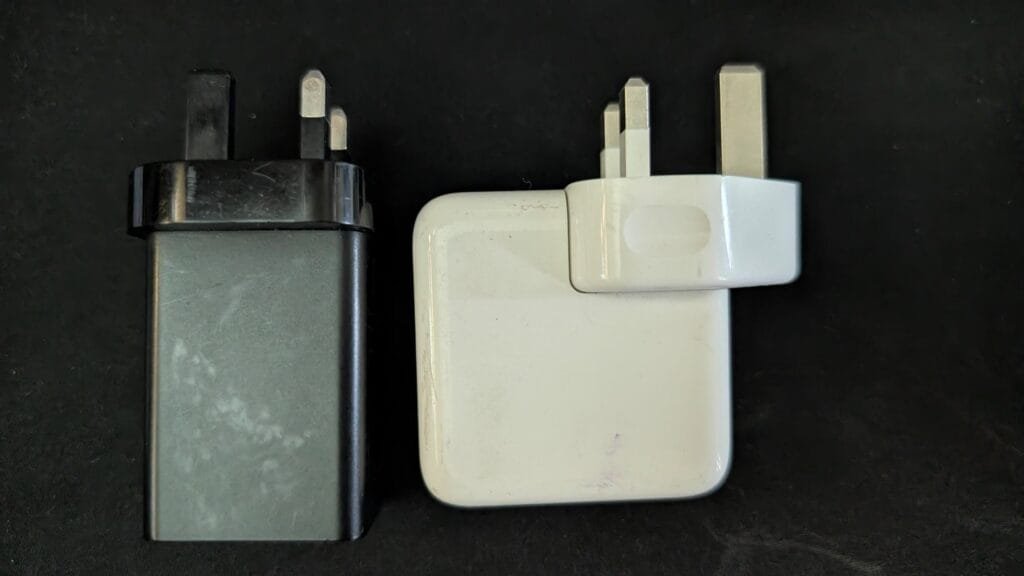
Battery life is still great — no longer stellar, but I can get through almost a full day of work on it. What I did replace was the official charger (a huge-ass brick) with a 60W Macdodo charger that fits much nicer in my bag and can charge 3 devices at once. Since it’s so small, it’s my go-to charger for traveling.
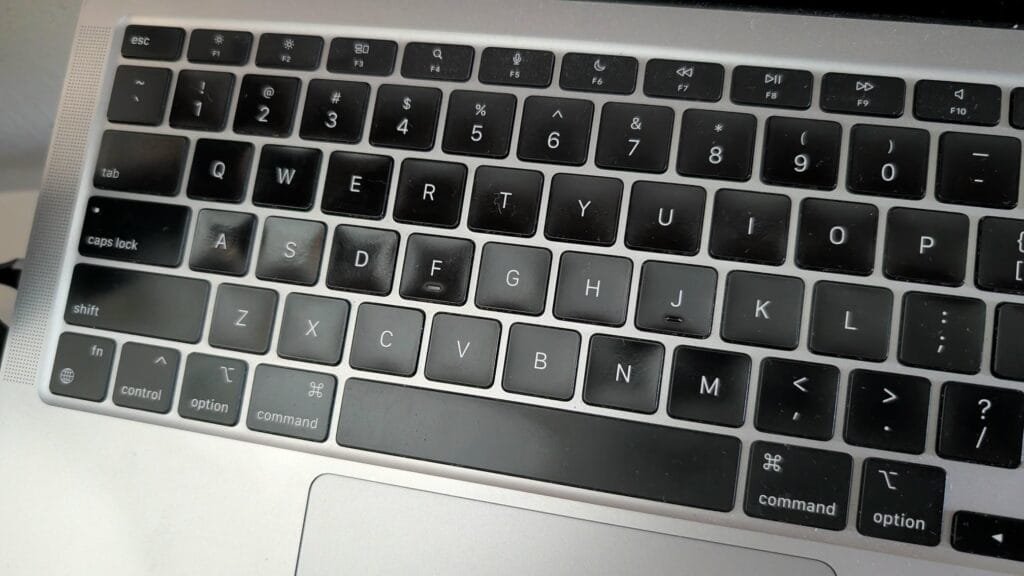
Other than that, zero issues with the laptop — no hardware degradation to report. There’s some shine on the keyboard, but that’s just what happens to ABS keycaps after years of use.
Performance-wise, I haven’t noticed any slowdown. Despite all the macOS upgrades over the years, it runs pretty much as well as it did on day one.
I’m not doing any heavy gaming — just the occasional Slay the Spire and Balatro. Mostly work: Slack, Notion, Chrome, and VS Code cover the majority of my workflow, and I’ve had no issues there.
Here’s what I currently have installed:
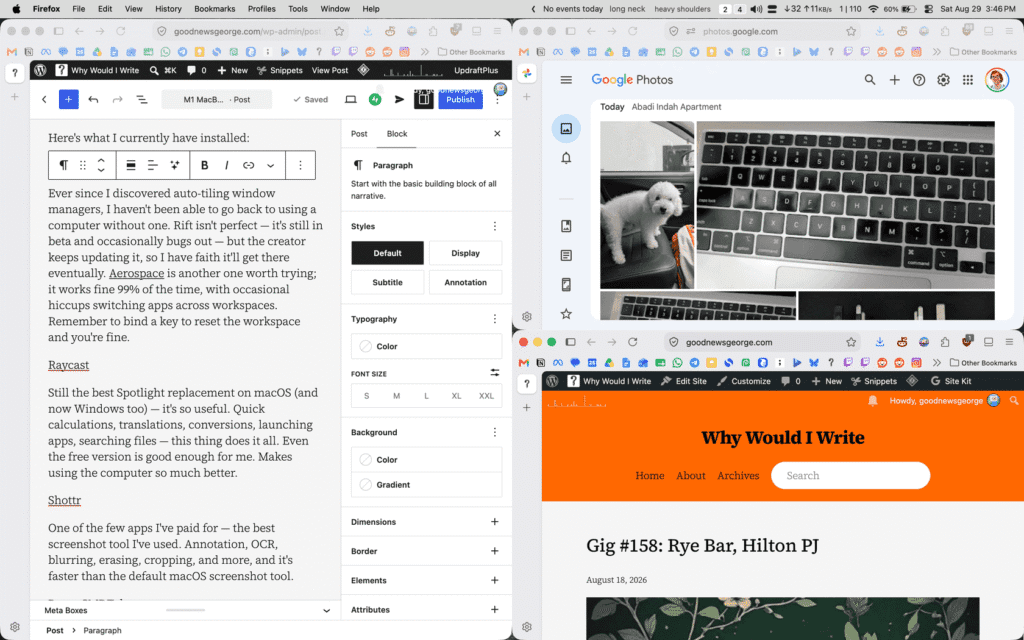
Ever since I discovered auto-tiling window managers, I haven’t been able to go back to using a computer without one. Rift isn’t perfect — it’s still in beta and occasionally bugs out — but the creator keeps updating it, so I have faith it’ll get there eventually. Aerospace is another one worth trying; it works fine 99% of the time, with occasional hiccups switching apps across workspaces. Remember to bind a key to reset the workspace and you’re fine.
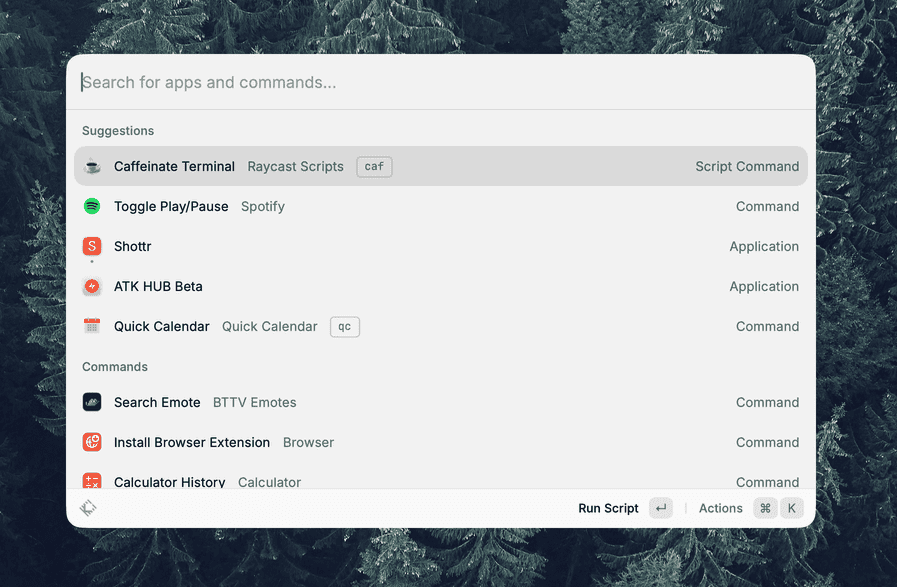
Still the best Spotlight replacement on macOS (and now Windows too) — it’s so useful. Quick calculations, translations, conversions, launching apps, searching files — this thing does it all. Even the free version is good enough for me. Makes using the computer so much better.
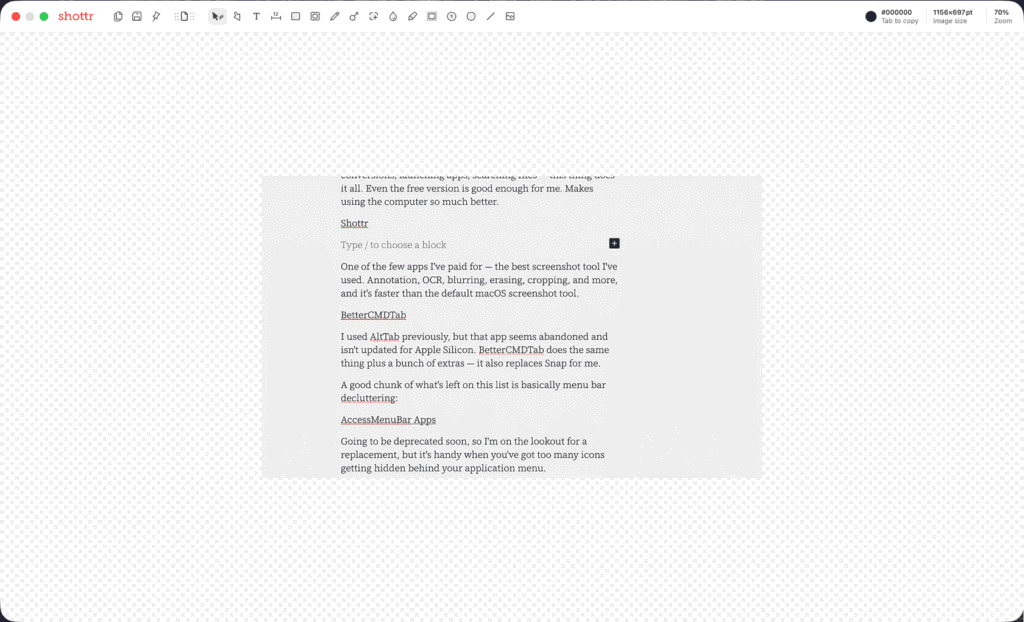
One of the few apps I’ve paid for — the best screenshot tool I’ve used. Annotation, OCR, blurring, erasing, cropping, and more, and it’s faster than the default macOS screenshot tool.
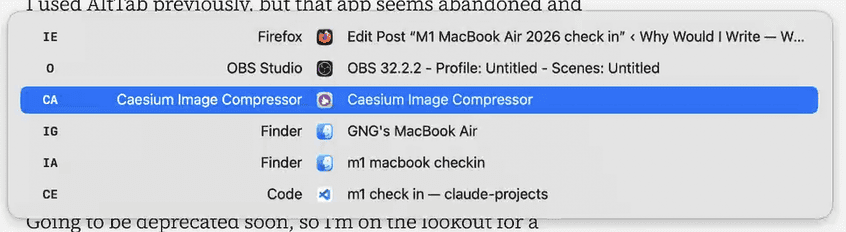
I used AltTab previously, but that app seems abandoned and isn’t updated for Apple Silicon. BetterCMDTab does the same thing plus a bunch of extras — it also replaces Snap for me.
A good chunk of what’s left on this list is basically menu bar decluttering:

A handy tool when you’ve got too many icons getting blocked by the application menu of your apps.
Another tool for cleaning up a crowded menu bar.
Mainly using it for a smaller menu bar font size.
Rounding out the list:
Reverses scroll direction on your mouse while keeping the normal (reversed) behavior on the trackpad.
Temporarily disables your keyboard so you can clean it without triggering keystrokes.
Shows your internet speed in the menu bar, handy for keeping an eye on your data usage at a glance.
Opens a terminal in your current Finder window. I just hit cmd + ctrl + T in Finder and it opens a terminal in that folder.
Mostly for work, but it’s a quick way to check character/word count on any selected text. Simply select the text you want to check, hit cmd + c, and the count will update in your menu bar.
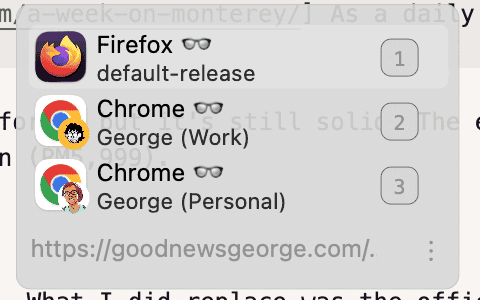
If you use multiple browsers, this opens links in whichever one you want — it even supports multiple profiles, great for switching between work and personal.
A couple of hidden macOS tricks I picked up along the way too:
For a snappier dock — no lag on hide/show — run this in your terminal:
defaults write com.apple.dock autohide-delay -float 0
defaults write com.apple.dock autohide-time-modifier -int 0
killall Dock
The first kills the pause before the dock starts sliding out, the second kills the slide animation itself, so it just snaps in and out instantly. Discovered the trick here.
And for dragging windows from anywhere (not just the title bar), run:
defaults write -g NSWindowShouldDragOnGesture -bool trueYou’ll need to restart your Mac after this, but once you’re back in, you can just hold ctrl + cmd and click-drag anywhere on a window to move it around.
That’s it for my almost 5 year check in. I can see myself sticking with macOS for at least another decade, depending on how life goes. I’m still on Windows at home for gaming, music production, art, and video editing, and I occasionally boot into CachyOS when I feel like messing around with Linux.
Hope some of the recommendations above help ease you into the macOS ecosystem if you’re moving over from Windows. For everything else, there’s always Reddit. Or AI.